
Part of the Claude Code workflow series. Start with the install primer, then what to do after install, then this post once you are ready to operate a session from outside your terminal.
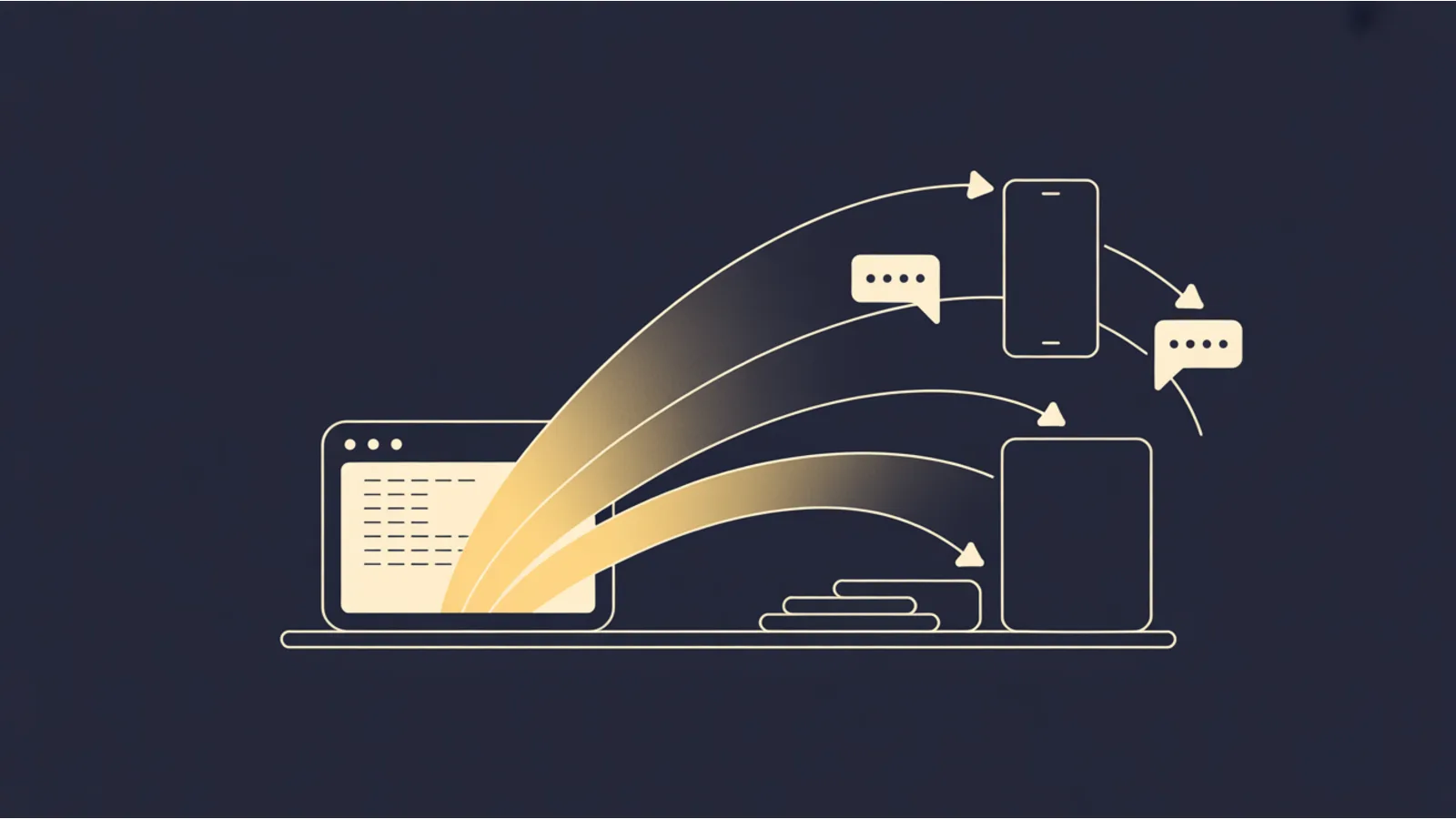
One of the quieter shifts in Claude Code was this: your session stopped being tied to a single terminal tab. Remote Control lets you drive an active session from your phone, a browser, or a second machine. Channels add chat-app transport, so iMessage, Telegram, and Discord can deliver prompts into the running session without you opening the terminal at all.
Neither is a separate agent. Neither runs anywhere except the local machine where the session lives. They are transport layers over the same session you would otherwise drive from the terminal. That distinction matters for both the threat model and your expectations.
Below is the accurate setup for each (the commands changed during the research preview, and a lot of older write-ups are now wrong), the gotchas you will hit, and a rubric for whether any of it earns the permission grants it asks for. This reflects the surface as of June 2026; re-check the official docs before depending on a flag.
Remote Control: what it actually does
Remote Control connects claude.ai/code or the Claude mobile app to a Claude Code session that is already running on your machine. Open the session on your phone and you are in the same session, with the same context, the same file access, the same tools, the same MCP servers. Start a migration at your desk, walk away, and keep steering it from the train.
The work never moves to the cloud. The web and mobile interfaces are a remote window, not a copy. Three things come with that:
- Your full local environment travels with you. Filesystem, MCP servers, tools, and project config stay available. Typing
@on your phone autocompletes file paths from your local project, because the project is still on your disk. - One conversation, many surfaces. The session stays in sync across every connected device. Send messages from the terminal, browser, and phone interchangeably; it is all one thread.
- It survives interruptions. If your laptop sleeps or your network blips, the session reconnects when the machine comes back online.
You need Claude Code v2.1.51 or later (claude --version to check), a Pro, Max, Team, or Enterprise plan, and a claude.ai login. API-key authentication is not supported. On Team and Enterprise the feature is off until an admin enables the Remote Control toggle in admin settings.
How the connection works (and why it stays private)
This part is worth understanding, because it is why Remote Control does not require opening your machine to the internet.
When you start Remote Control, your local session makes outbound HTTPS requests only. It never opens an inbound port. It registers with the Anthropic API and then polls for work. When you connect from another device, the API routes messages between that client and your local session over a streaming connection. All traffic travels over TLS, and the connection uses several short-lived credentials, each scoped to one purpose and expiring on its own schedule. So there is no standing tunnel into your laptop and no long-lived key to steal.
Three ways to start it
This is where most older guides go wrong. There is no --enable-remote-control flag and no /remote command. The real entry points are below.
Server mode: one process, many sessions
claude remote-control
The process stays running in your terminal and waits for remote connections. It prints a session URL, and you can press the spacebar to show a QR code for quick access from your phone. Useful flags: --name "My Project" sets the title shown in the session list; --spawn worktree gives each on-demand session its own git worktree (press w at runtime to toggle); --capacity <N> caps concurrent sessions (default 32); --sandbox adds filesystem and network isolation; --verbose is the first thing to reach for when a connection fails.
Interactive mode: keep typing locally too
claude --remote-control "My Project"
The short alias is --rc. This gives you a normal interactive terminal session that is also reachable from claude.ai or the app, so you can keep working locally while the phone stays available. This is the everyday choice.
From a session you already started
Mid-task and need to leave? Run /remote-control (or /rc). It carries over your current conversation history and prints a session URL and QR code.
VS Code
In the Claude Code VS Code extension, type /remote-control or /rc (requires v2.1.79+). A banner shows connection status with an Open in browser button.
Connecting from another device
Once a session is active you have three ways in: open the session URL in any browser to land directly on the session at claude.ai/code; scan the QR code to open it in the Claude app; or open claude.ai/code or the Claude app and find it by name (in the mobile app, tap Code in the navigation). Online sessions show a computer icon with a green dot. If you do not have the app yet, run /mobile inside Claude Code for a download QR code.
To make Remote Control automatic for every interactive session, run /config and set Enable Remote Control for all sessions to true (or, in the Desktop app, Settings, then Claude Code, then Enable remote control by default).
Mobile push notifications
This is the feature that turns "go check on it" into "it tells me." When Remote Control is active and you are on v2.1.110 or later, Claude can push notifications to your phone. It decides when to send one, usually when a long task finishes or when it needs a decision to continue, and you can request one in your prompt, like notify me when the tests finish.
Setup: install the Claude app, sign in with the same account you use in the terminal, accept the OS notification prompt, then run /config and enable Push when Claude decides. If pushes do not arrive, the usual culprits are an unrefreshed push token (open the app once), iOS Focus modes, or Android battery optimization.
Channels: push chat and events into the session
Channels are the other half of working away from the terminal. A channel is an MCP server that pushes events into your running session, so Claude can react to things that happen while you are not at the keyboard. Channels can be two-way: Claude reads the event and replies back through the same channel, like a chat bridge.
Telegram, Discord, and iMessage are included in the research preview, plus a fakechat localhost demo and the option to build your own. Channels require Claude Code v2.1.80 or later, claude.ai or Console API-key auth (not Bedrock, Vertex, or Foundry), and each plugin needs Bun installed. On Team and Enterprise an admin must set channelsEnabled. Events only arrive while the session is open, so for an always-on setup you run Claude in a background process or a persistent terminal.
The mental model: same local session, same repo checkout, same tool access, just reached from Messages, Telegram, or Discord instead of the terminal.
iMessage (lowest friction on a Mac)
The iMessage channel reads your Messages database directly and replies through AppleScript. macOS only, no bot token.
- Grant Full Disk Access. The database at
~/Library/Messages/chat.dbis protected. The first read triggers a macOS prompt naming whichever app launched Bun (Terminal, iTerm, your IDE). Click Allow, or add the terminal manually under System Settings, Privacy and Security, Full Disk Access. Without it the server exits withauthorization denied. - Install the plugin:
If it is not found, run/plugin install imessage@claude-plugins-official/plugin marketplace update claude-plugins-official(or/plugin marketplace add anthropics/claude-plugins-officialthe first time), then retry. - Restart with the channel enabled:
claude --channels plugin:imessage@claude-plugins-official - Text yourself from any device on your Apple ID. Self-chat bypasses access control with no setup. The first reply Claude sends triggers a macOS Automation prompt asking if the terminal can control Messages; click OK.
- Allow other senders by handle:
/imessage:access allow +15551234567(phone in+countryformat, or an Apple ID email).
Telegram (cross-platform)
- Message BotFather, send
/newbot, and copy the token. - Install and activate:
/plugin install telegram@claude-plugins-official /reload-plugins - Configure the token (this is the step older guides get wrong; it is not
CLAUDE_TELEGRAM_BOT_TOKEN):
It saves to/telegram:configure <token>~/.claude/channels/telegram/.env. You can instead setTELEGRAM_BOT_TOKENin your shell before launching. - Restart with the channel:
claude --channels plugin:telegram@claude-plugins-official - Message your bot; it replies with a pairing code. Back in Claude Code, run
/telegram:access pair <code>, then lock it down with/telegram:access policy allowlist.
Discord is the same pattern: create a bot in the Developer Portal, enable Message Content Intent, invite it with the bot scope, then /plugin install discord@claude-plugins-official, /discord:configure <token> (or DISCORD_BOT_TOKEN), restart with --channels plugin:discord@claude-plugins-official, and pair with /discord:access pair <code>.
Tip: try
fakechatfirst./plugin install fakechat@claude-plugins-official, thenclaude --channels plugin:fakechat@claude-plugins-official, then openhttp://localhost:8787. Nothing to authenticate, and it proves the whole flow works before you wire up a real platform. You can pass several plugins to--channels, space-separated.
The security trade-offs you are making
Channels ask for real permissions. Be honest about what you are granting.
- Sender allowlist. Every approved channel keeps a sender allowlist; only IDs you have added can push messages, and everyone else is silently dropped. Telegram and Discord bootstrap the list by pairing; iMessage lets your own messages through automatically and you add others with
/imessage:access allow. Being in.mcp.jsonis not enough; a server also has to be named in--channels. - iMessage Full Disk Access means that terminal can read anything in your home directory. Claude Code is well behaved, but any process sharing that terminal gets the same reach. If that is uncomfortable, do not grant it.
- Bot tokens are passwords. A Telegram or Discord token can post as your bot. Keep it in the channel
.envor an environment variable, never a committed file, and rotate it if you suspect compromise. - Permission relay is powerful. If a channel declares the permission-relay capability, anyone on the allowlist can approve or deny tool use in your session from their phone. Only allowlist senders you trust with that authority. For unattended runs,
--dangerously-skip-permissionsremoves prompts entirely, and you should only use it in environments you trust.
Remote Control vs the web vs Channels vs Dispatch
These five features get confused for each other constantly. The clean version:
| Feature | What triggers it | Where Claude runs | Best for |
|---|---|---|---|
| Remote Control | You drive a running session from claude.ai/code or the Claude app | Your machine (CLI or VS Code) | Steering in-progress local work from another device |
| Claude Code on the web | You kick off a task in the browser | Anthropic-managed cloud | A repo you have not cloned, or many parallel tasks with no local setup |
| Dispatch | You message a task from the Claude mobile app | Your machine (Desktop) | Delegating work while away, minimal setup |
| Channels | An external event fires (chat message, CI failure, webhook) | Your machine (CLI) | Reacting to events like a Telegram message or a failed build |
| Scheduled tasks | A schedule you set | CLI, Desktop, or cloud | Recurring automation like a daily review |
The line that matters most: Remote Control runs on your machine; Claude Code on the web runs in Anthropic's cloud. And where Remote Control steers a session you started, Dispatch starts one for you from a text (pair the Claude mobile app with Desktop once, then message a task and it spawns a Desktop session). Channels is the broadest: it is an MCP-server mechanism, so beyond chat it can receive a webhook from CI, an error tracker, or your own server, landing the event right where Claude already has your files open.
Operational limits (the fine print)
- One remote session per interactive process. For multiple at once, use server mode.
- The host process must stay running. Close the terminal or quit VS Code and the session ends. Messages sent to a channel while the session is down are lost or delayed. This is a window into a live process, not a server that runs without you. For "runs when I am not there," use scheduled tasks instead.
- A long network outage ends it. If the machine is awake but cannot reach the network for more than about ten minutes, the session times out and exits.
- Ultraplan disconnects Remote Control, because both occupy the claude.ai/code interface.
- Permission prompts still block. If the session needs approval for a tool call, it pauses until you respond. A channel can feel broken when it is really waiting for a local OK (or a relayed one).
- Some commands are local-only. Interactive pickers (
/mcp,/plugin,/resume) work only from the local CLI; text-output commands (/compact,/clear,/context,/usage,/recap) work from mobile and web.
When Remote Control and Channels are worth it
Worth it if you regularly start long tasks and want to check on them from away; you have a team pattern where someone dispatches "kick off the test suite" from chat; you travel with devices that do not have your terminal set up; or you run scheduled jobs that occasionally need an approval you would rather not drive back to the laptop for.
Not worth it if you do most work from one machine and one terminal anyway, the permission grants (especially Full Disk Access for iMessage) feel uncomfortable, or you are in a regulated environment where adding transport layers means paperwork.
For most solo developers it is Remote Control yes, Channels maybe. Remote Control costs nothing beyond what Claude Code already has. Channels earn their keep only when you actually dispatch from chat apps or pipe in external events.
Where this is heading
Both Remote Control and Channels are research-preview features, which means they move fast. The changelog tells the story: VS Code support landed in v2.1.79, mobile push in v2.1.110, and by v2.1.162 the connection status moved into a persistent footer pill with a session link. Channels expanded from a chat bridge into a general webhook receiver. The --channels flag syntax may still change.
The honest answer on "what is next" is to watch the changelog. The surrounding surfaces (Channels, Dispatch, the web, and scheduled tasks) are clearly being designed to hand off to each other, and that is where the roadmap is visible. Worth noting for the two-CLI crowd: OpenAI's Codex has been adding the same muscle, with short-lived-token remote control and controller pairing through its app server, so "steer a local agent from your phone" is becoming standard across both tools. The two-CLI workflow post covers splitting work between them.
If you are running a real operation off a laptop and a phone, the "do more with less infrastructure" mindset here is the same one in my book The $97 Launch (a $9.99 Kindle title about shipping a product solo without a team or a budget). Remote Control is a small piece of it: your dev environment goes where you go.
Quick troubleshooting
"Nothing happens when I send an iMessage." Full Disk Access. Confirm your terminal app is listed and enabled under Privacy and Security, then relaunch it.
"The Telegram bot gets my messages but does not reply." Make sure Claude Code is still running with --channels (the bot can only reply while the channel is active), and check that you paired with /telegram:access pair. If the dispatch arrives but Claude is silent, the session may be paused on a permission prompt.
"Remote Control will not connect." Sign in with claude.ai rather than an API key (unset ANTHROPIC_API_KEY if set), use claude auth login for a full-scope token rather than an inference-only setup-token, and check that no firewall is blocking outbound HTTPS on port 443. Re-run with --verbose for the full error. On Team and Enterprise, confirm the admin enabled the Remote Control toggle.
Related reading
- AI Terminal Kickstart — install prereq.
- CLI installed, now what? — the overview where Remote Control and Channels first appear.
- /loop vs /schedule — scheduled tasks are the complement for "runs when I am not there."
- Hooks implementation guide — fewer approvals means a smoother remote experience.
- Two-CLI workflow — running Codex and Claude Code together.
Fact-check notes and sources
Drawn from the official Claude Code documentation as of June 2026. Both features are in research preview, so specifics can change between releases.
- Official Claude Code docs — Remote Control (start modes, connection and security, push notifications, limitations, the comparison table), Channels (plugin install,
/telegram:configure, pairing, allowlists,channelsEnabled), Channels reference, Claude Code on the web, Scheduled tasks, and the Changelog for version gates (v2.1.51 Remote Control, v2.1.79 VS Code, v2.1.80 Channels, v2.1.110 push). - Official plugin source — claude-plugins-official (Telegram, Discord, iMessage, fakechat).
Informational, not security-consulting advice. Channels can require granting Full Disk Access to your terminal; understand the implications before enabling. Command names and version numbers reflect the research-preview surface as of June 2026; verify against the official changelog and the plugin source before installing. Mentions of Anthropic, Apple, Telegram, Discord, OpenAI, and linked publications are nominative fair use. No affiliation is implied.
