
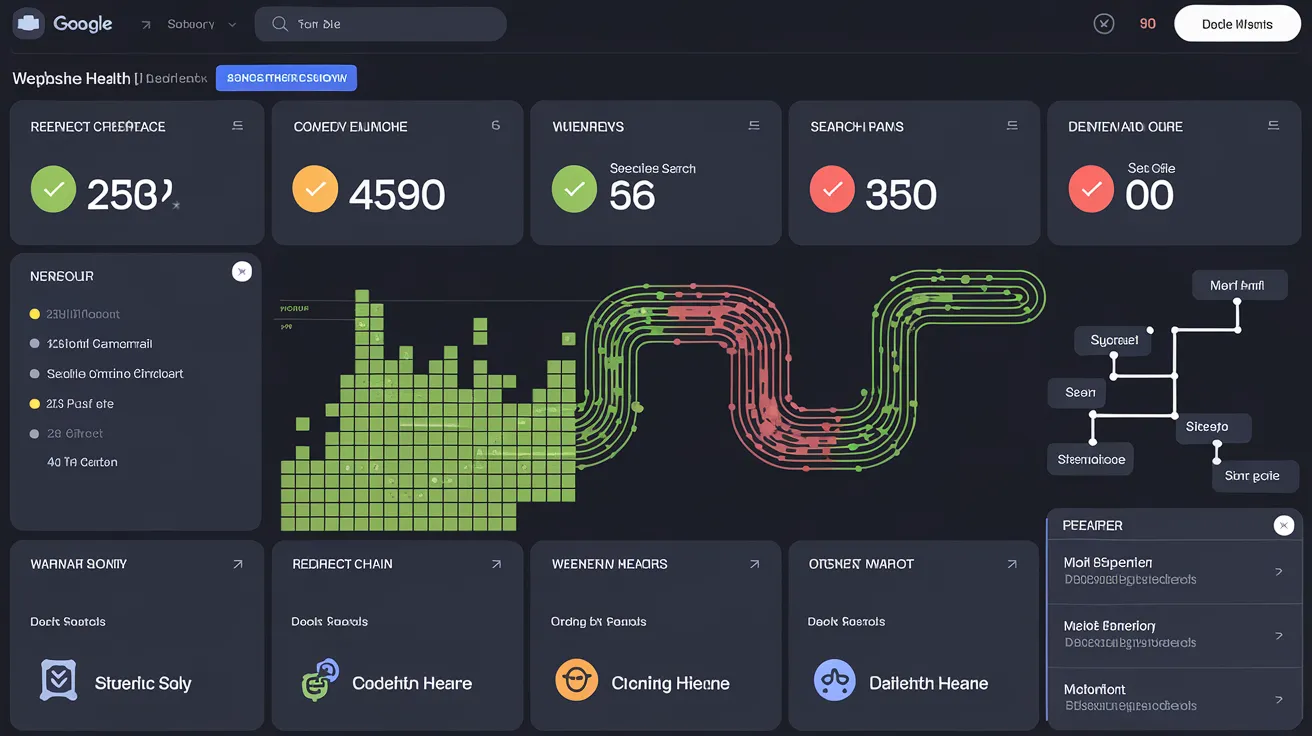
You publish a page. It looks fine in the browser. Then two weeks later you check Google Search Console and find "Page with redirect," "Duplicate without canonical," or "Alternate page with proper canonical tag" errors stacking up. Your pages are not getting indexed. Your rankings are slipping. And you have no idea what broke.
These hosting and indexing errors are the most common technical SEO problems I see across the sites I audit. They are also the most fixable. Once you know what to look for. The Hosting & Indexing Health tool detects these issues automatically and generates fix instructions you can paste into ChatGPT or Claude for platform-specific solutions.
The Most Common GSC Errors and What They Mean
Page with Redirect
Google followed your URL and hit a redirect before reaching the final page. This is not inherently bad. Redirects are normal. But it becomes a problem when:
- You submitted the redirecting URL in your sitemap instead of the final destination URL
- There are redirect chains (A redirects to B, B redirects to C)
- HTTP redirects to HTTPS, and your sitemap lists HTTP URLs
- www redirects to non-www (or vice versa), and your internal links use the wrong version
The fix is always the same: make sure every URL in your sitemap, internal links, and canonical tags points to the final destination URL with no redirects in the path.
Redirect Error
This is worse than "Page with redirect." It means Google tried to follow a redirect and the redirect itself failed. A redirect loop, a redirect to a non-existent page, or a server error during the redirect.
Common causes:
- Redirect loops. www redirects to non-www, and non-www redirects back to www. Or HTTP redirects to HTTPS, and the HTTPS version redirects back to HTTP.
- Broken redirect targets. You set up a redirect from
/old-pageto/new-page, but/new-pagedoes not exist. - CDN/hosting conflicts. Your DNS provider adds a redirect that conflicts with your hosting provider's redirect.
Duplicate Without Canonical
Google found two or more URLs with the same content and none of them have a canonical tag specifying which version is authoritative. Google has to guess, and it often guesses wrong.
The most common scenario: your page is accessible at both https://example.com/page/ and https://example.com/page/index.html. Without a canonical tag, Google sees these as two separate pages with identical content.
Alternate Page with Proper Canonical Tag
This is not technically an error. It is Google telling you it found a page that points to a different URL via the canonical tag. Google is respecting the canonical and indexing the target URL instead. But if you see hundreds of these and did not expect them, something is misconfigured.
How the Hosting & Indexing Health Tool Works
The Hosting & Indexing Health tool checks your site for all of these issues in a single scan. Enter your URL and it runs through:
- Redirect chain detection. Follows every redirect hop and reports the full chain. Flags chains longer than one redirect.
- Canonical URL validation. Checks that your page has a canonical tag, that it points to the correct URL, and that the canonical URL resolves.
- www vs non-www consistency. Verifies that one version redirects to the other and that your sitemap and internal links use the canonical version.
- HTTP vs HTTPS consistency. Confirms that HTTP redirects to HTTPS with a 301, not a 302.
- Trailing slash consistency. Checks whether your site uses trailing slashes consistently and flags mixed usage.
- Sitemap validation. Fetches your sitemap.xml and verifies that every URL in it returns a 200 status code with no redirects.
- Robots.txt check. Confirms your robots.txt exists, references your sitemap, and does not accidentally block important pages.
- HSTS header inspection. Checks for the
Strict-Transport-Securityheader that tells browsers to always use HTTPS.
Fixing Canonical URL Mismatches
Canonical issues are the most common problem the tool finds. Here is how to fix them for each scenario.
Missing canonical tag. Add this to your page's <head>:
<link rel="canonical" href="https://example.com/your-page/" />
The URL must be absolute (include the protocol and domain), not relative.
Canonical points to wrong URL. This usually happens when your canonical tag uses a different domain variant than your actual URL. If your site uses https://example.com (no www), your canonical must not point to https://www.example.com.
Self-referencing canonical missing. Every page should have a canonical tag that points to itself. This is not optional. It is how you tell Google which URL format is authoritative.
In Eleventy, add this to your base template:
<link rel="canonical" href="{{ page.url | url | absoluteUrl(metadata.url) }}" />
www vs non-www Redirect Setup
Pick one version and redirect the other. Here is how on each platform:
Netlify
In your netlify.toml:
[[redirects]]
  from = "https://www.example.com/*"
  to = "https://example.com/:splat"
  status = 301
  force = true
Or use Netlify's domain settings to set the primary domain and it handles the redirect automatically.
Vercel
In your vercel.json:
{
  "redirects": [
    {
      "source": "/:path(.*)",
      "has": [{ "type": "host", "value": "www.example.com" }],
      "destination": "https://example.com/:path",
      "permanent": true
    }
  ]
}
Cloudflare
Create a Page Rule:
- URL:
www.example.com/* - Setting: Forwarding URL (301)
- Destination:
https://example.com/$1
Or use Cloudflare's bulk redirects for better performance.
Apache (.htaccess)
RewriteEngine On
RewriteCond %{HTTP_HOST} ^www\.example\.com [NC]
RewriteRule ^(.*)$ https://example.com/$1 [L,R=301]
Nginx
server {
    server_name www.example.com;
    return 301 https://example.com$request_uri;
}
The /index.html Duplicate Content Fix
This is one of the sneakiest issues. Many static site generators output files as /page/index.html. Depending on your hosting configuration, the page might be accessible at three URLs:
https://example.com/page/https://example.com/page/index.htmlhttps://example.com/page(no trailing slash)
Google treats each of these as a separate URL. Without redirects and canonical tags, you have triple duplicate content.
On Netlify: Netlify handles this automatically with its "Pretty URLs" setting (enabled by default). It serves /page/index.html at /page/ and redirects /page/index.html to /page/.
On Vercel: Add trailingSlash: true to your next.config.js or vercel.json to enforce consistent URL formatting.
On Cloudflare Pages: Cloudflare Pages strips index.html automatically but does not add trailing slashes by default. Add a redirect rule for consistency.
Sitemap and robots.txt Domain Consistency
Your sitemap URLs must use the exact same domain format as your canonical tags. If your canonical uses https://example.com, your sitemap must not list https://www.example.com or http://example.com.
Your robots.txt should reference your sitemap with the correct domain:
User-agent: *
Allow: /

Sitemap: https://example.com/sitemap.xml
The tool checks for domain mismatches between your sitemap, robots.txt, canonical tags, and the actual resolved URL.
HSTS Headers and Why They Matter
HSTS (HTTP Strict Transport Security) tells browsers to always use HTTPS for your domain, even if the user types http://. Without it, the first request might go over HTTP before the redirect kicks in. Which is both a security risk and an unnecessary redirect that slows down the page load.
Add the HSTS header on your platform:
Netlify. Add to your netlify.toml or _headers file:
/*
  Strict-Transport-Security: max-age=31536000; includeSubDomains; preload
Vercel. Add to your vercel.json:
{
  "headers": [
    {
      "source": "/(.*)",
      "headers": [
        {
          "key": "Strict-Transport-Security",
          "value": "max-age=31536000; includeSubDomains; preload"
        }
      ]
    }
  ]
}
The max-age=31536000 tells browsers to remember the HTTPS-only rule for one year. The preload directive lets you submit your domain to the browser HSTS preload list so that even the first visit uses HTTPS.
The LLM Fix Prompt Feature
This is the fastest way to fix issues the tool detects. After the scan completes, click Copy LLM Fix Prompt. The tool generates a detailed prompt that includes:
- Every issue detected on your site
- Your specific hosting platform (if detected)
- The exact URLs, headers, and redirects that need to change
- Context about what each fix does
Paste that prompt into ChatGPT or Claude and you get back platform-specific configuration files, code snippets, and step-by-step instructions tailored to your exact situation. No generic advice. The fixes are built from your actual scan data.
This is the same approach used by the Batch Analyzer's AI Fix Prompt feature, applied specifically to hosting and indexing issues.
Connecting This to Your SEO Strategy
Hosting and indexing errors are the invisible SEO killers. You can have perfect content, excellent backlinks, and comprehensive schema markup. And still not rank because Google cannot properly index your pages due to redirect chains or canonical mismatches.
If you are following the workflow from The $20 Agency, the Hosting & Indexing Health check should be the first audit you run on any new client site. Fix the infrastructure before optimizing the content. The same applies to your own properties built with the methodology from The $97 Launch.
Run the Hosting & Indexing Health tool on your site now. If the scan comes back clean, you are in good shape. If it finds issues, use the LLM Fix Prompt to generate the exact fixes for your platform. Most hosting and indexing issues can be resolved in under an hour.
Related reading
The methodology behind this piece is covered in depth in:
- The $97 Launch, Domain, hosting, deploy, and indexing stack for getting a site into search quickly.
- The $100 Network, Monoclone architecture, IndexNow, and multi-site scaling, how to run a network of sites.
